> For the complete documentation index, see [llms.txt](https://docs.saros.xyz/llms.txt). Markdown versions of documentation pages are available by appending `.md` to page URLs; this page is available as [Markdown](https://docs.saros.xyz/kr/saros-perp-dex/order-management.md).

# 주문 관리

### Open a trade <a href="#open-a-trade" id="open-a-trade"></a>

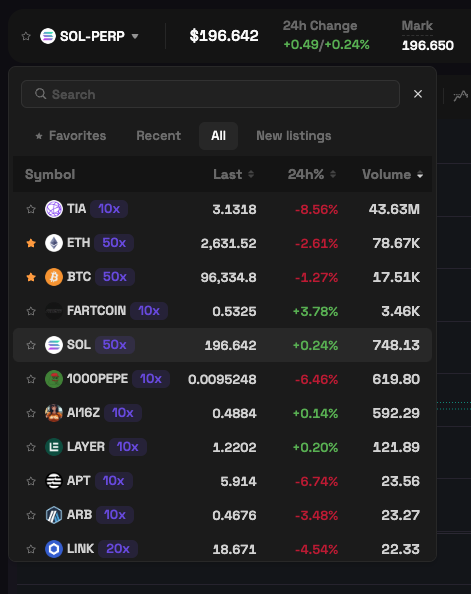
**Step 1**: Select the asset pair you wish to trade from the available list of markets on Saros Perpetual

<figure><img src="https://content.gitbook.com/content/6wgcgQTsURz6jvSKySRc/blobs/XuRQUpWvnUllJvDG3ZaI/g8.png" alt=""><figcaption></figcaption></figure>

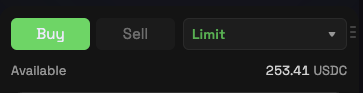
**Step 2**: Select **Buy** or **Sell**, depending on whether you want to go **Long** or **Short** on the asset.

<figure><img src="https://content.gitbook.com/content/6wgcgQTsURz6jvSKySRc/blobs/GzWS5i3QZsUKwn18TWGp/g9.png" alt=""><figcaption></figcaption></figure>

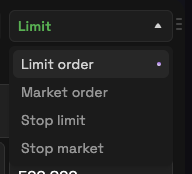
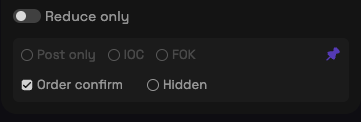
**Step 3**: Choose the order type you want to place. It’s recommended to review the Order Types [Order Types](https://orderly.network/docs/introduction/trade-on-orderly/trading-basics/order-types) and [Trading Fees](https://orderly.network/docs/introduction/trade-on-orderly/trading-basics/trading-fees) before placing large orders.

<figure><img src="https://content.gitbook.com/content/6wgcgQTsURz6jvSKySRc/blobs/Egab9Svqdsk1TR0kxZ7H/g10.png" alt=""><figcaption></figcaption></figure>

<figure><img src="https://content.gitbook.com/content/6wgcgQTsURz6jvSKySRc/blobs/7SDHp0yDPR9LOK6yEL3J/g11.png" alt=""><figcaption></figcaption></figure>

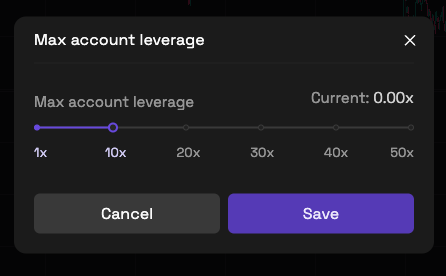
**Step 4**: Adjust the leverage. Keep in mind that while leverage can amplify profits, it also increases risk. Use it wisely to safeguard your investments.

<figure><img src="https://content.gitbook.com/content/6wgcgQTsURz6jvSKySRc/blobs/oHN7ucEy29M4jeyr6Drj/g12.png" alt=""><figcaption></figcaption></figure>

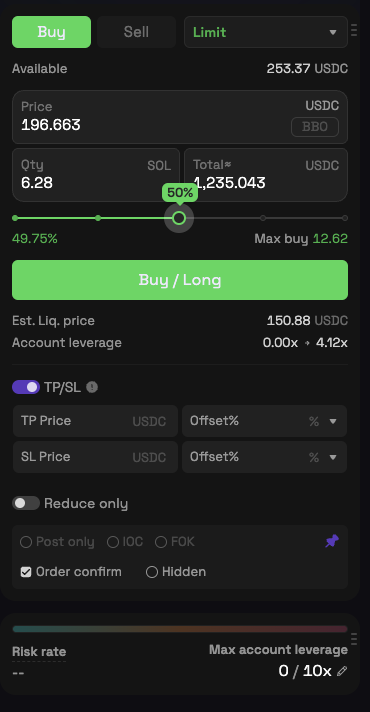
**Step 5**: Enter the quantity to set the order size.

<figure><img src="https://content.gitbook.com/content/6wgcgQTsURz6jvSKySRc/blobs/2tU7OCiEuvLRbypvLRo4/g13.png" alt=""><figcaption></figcaption></figure>

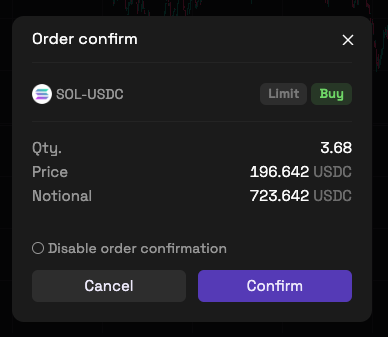
**Step 6**: Carefully review the order details before confirming and opening the trade

<figure><img src="https://content.gitbook.com/content/6wgcgQTsURz6jvSKySRc/blobs/RDm8PRwx17H7gVIFNzlk/g14.png" alt=""><figcaption></figcaption></figure>

### Close a trade <a href="#close-a-trade" id="close-a-trade"></a>

To realize PnL and close a position, go to the **Positions** tab at the bottom left and click the **Close** button.

<figure><img src="https://content.gitbook.com/content/6wgcgQTsURz6jvSKySRc/blobs/yHZn9N9ScB7G8so02ql8/g15.png" alt=""><figcaption></figcaption></figure>

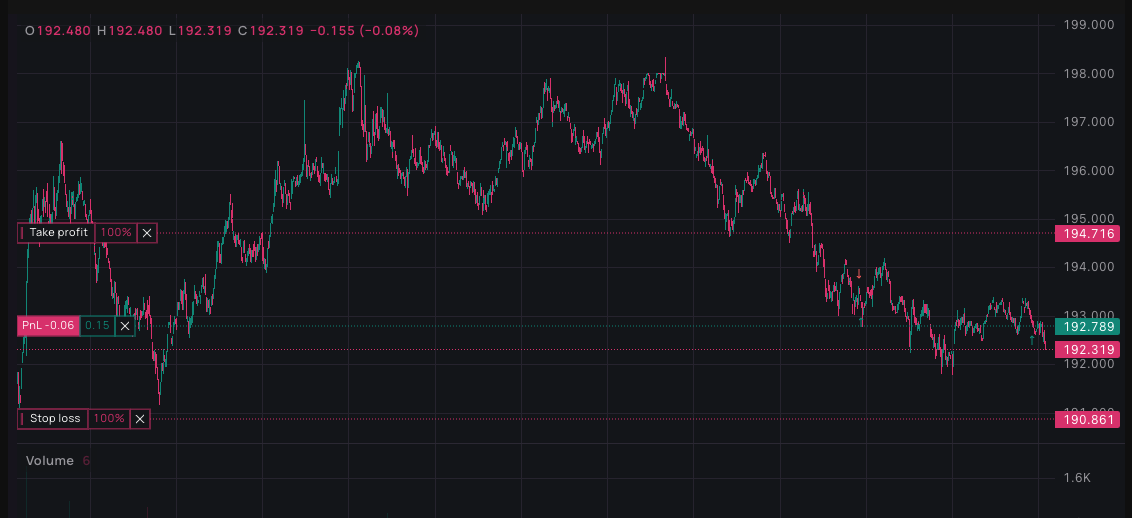
You can also close the position directly from the price chart

<figure><img src="https://content.gitbook.com/content/6wgcgQTsURz6jvSKySRc/blobs/lKXL0TlmiQOzR5m4UP5K/g16.png" alt=""><figcaption></figcaption></figure>

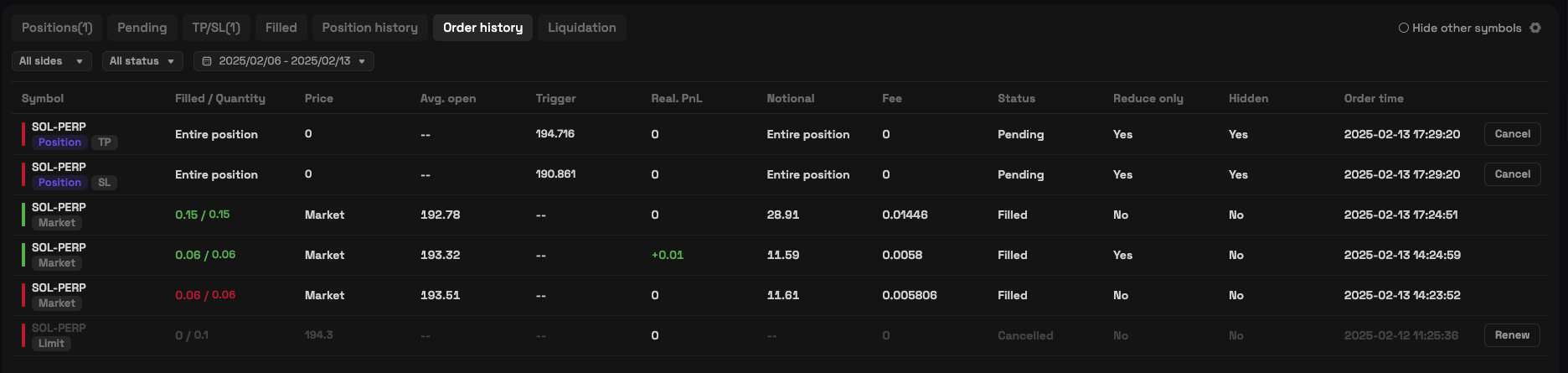
Closed orders will be recorded in the Order History tab.

<figure><img src="https://content.gitbook.com/content/6wgcgQTsURz6jvSKySRc/blobs/KfjriGOLj7sxohQj1ZPY/g17.png" alt=""><figcaption></figcaption></figure>

### Set TP/SL for a trade <a href="#set-tpsl-for-a-trade" id="set-tpsl-for-a-trade"></a>

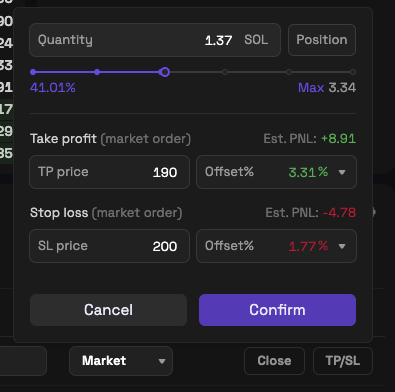
To set **Take Profit (TP) / Stop Loss (SL)** prices, you can do so either before or after placing a trade. For open positions, click on the **TP/SL** button on the far right and enter your desired values.
<figure><img src="https://content.gitbook.com/content/6wgcgQTsURz6jvSKySRc/blobs/5TpJqQybciFDd9s9ltTc/g18.png" alt=""><figcaption></figcaption></figure>