> For the complete documentation index, see [llms.txt](https://docs.saros.xyz/llms.txt). Markdown versions of documentation pages are available by appending `.md` to page URLs; this page is available as [Markdown](https://docs.saros.xyz/saros-mobile-app/extension/how-to-log-in-to-social-account.md).

# How to log in to Social Account

Before you get started, please ensure you have an active social media account (e.g., Facebook, Google, Apple) that you intend to use to log in.

{% hint style="info" %}
**Note:** With Saros Extension only available in **Expand mode**, if users use it in a normal pop-up, Saros will automatically switch to **Expand mode**.
{% endhint %}

**Step 1:** Access to Saros Wallet

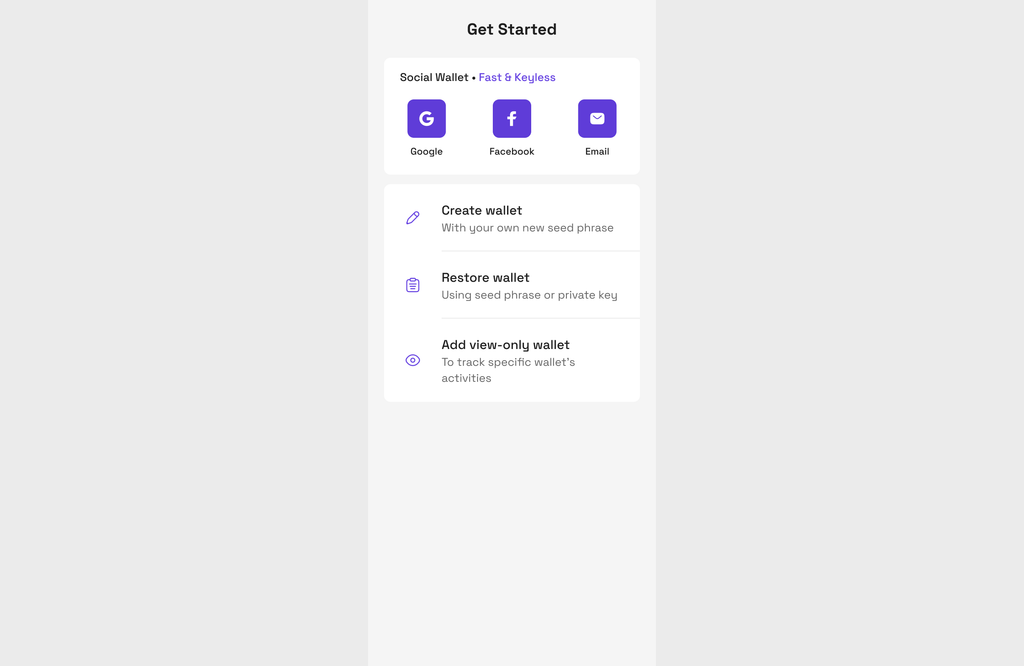
**Step 2:** Click Wallet section at the top left corner, then Click **Add** button on the top right corner to show supported social login methods (Facebook, Email, Google)

<div><figure><img src="https://904341613-files.gitbook.io/~/files/v0/b/gitbook-x-prod.appspot.com/o/spaces%2F-MH4bZ3PuLVs6zPxsi0v%2Fuploads%2Fgit-blob-15dc56ea7aaf64e0e8ce79215593bea2fe9116a7%2Fext-social-1.png?alt=media" alt=""><figcaption></figcaption></figure> <figure><img src="https://904341613-files.gitbook.io/~/files/v0/b/gitbook-x-prod.appspot.com/o/spaces%2F-MH4bZ3PuLVs6zPxsi0v%2Fuploads%2Fgit-blob-9cd5416235ef0ed377bce35ea568f4242caae091%2Fext-social-2.png?alt=media" alt=""><figcaption></figcaption></figure></div>

**Step 3:**

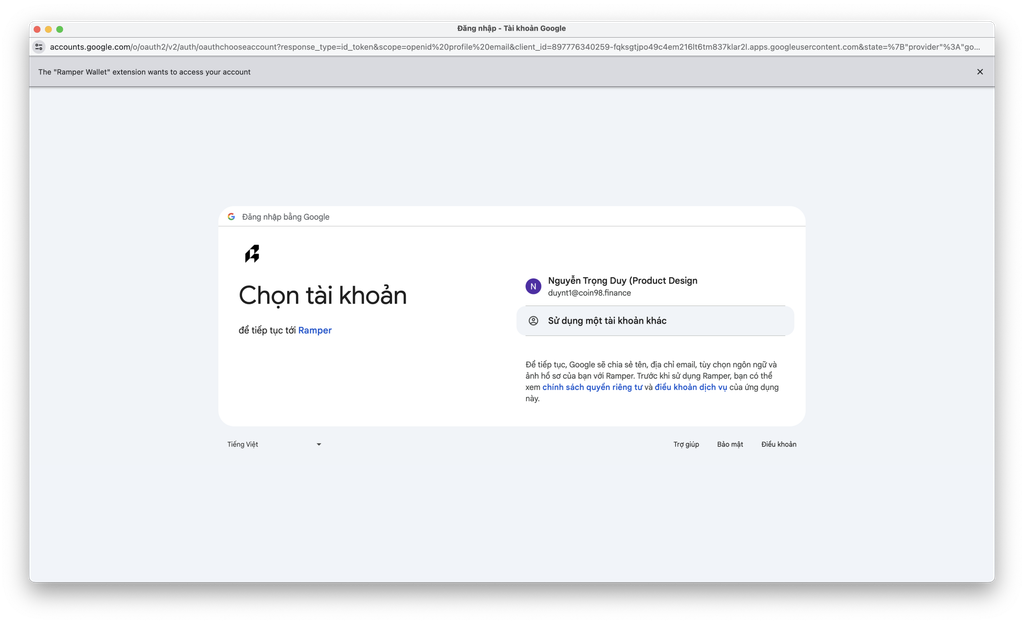
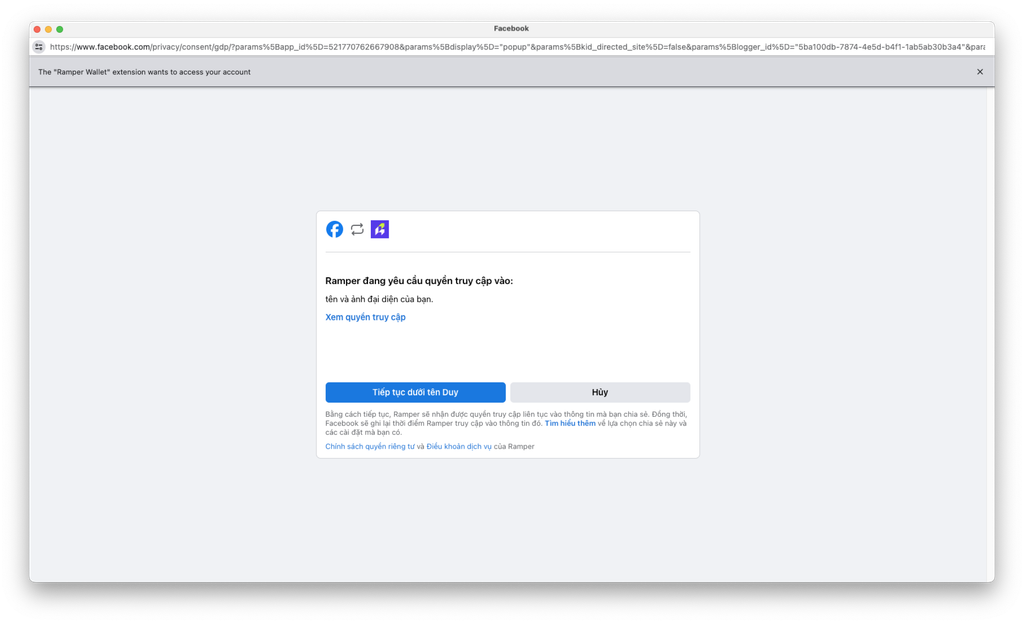
* With **Google**, and **Facebook** you will be redirected to the login page of the selected social media platform.
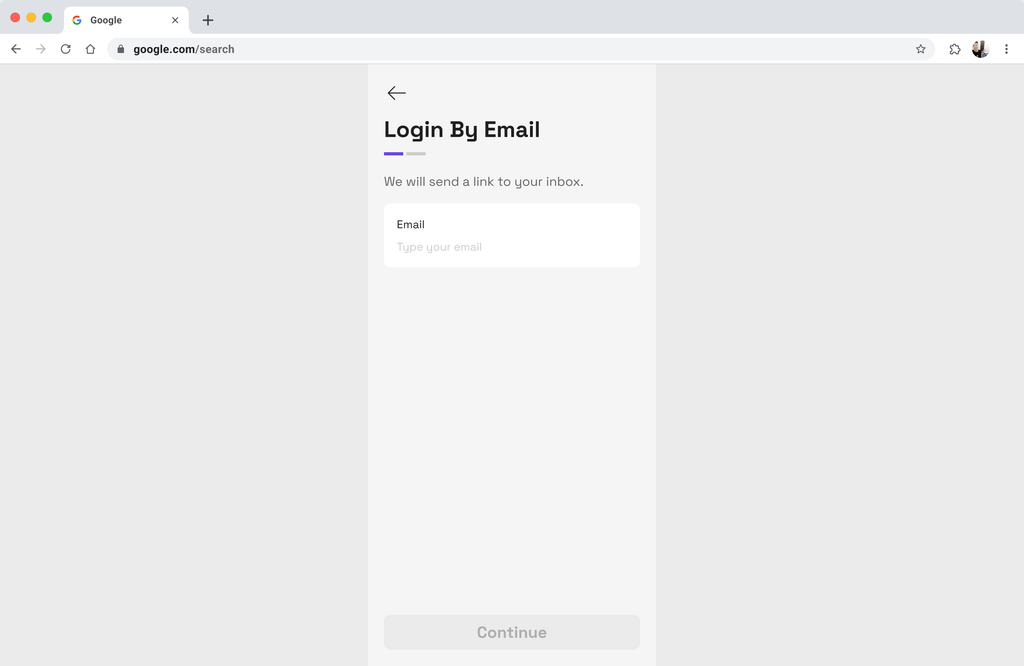
* With **Email**, you will see the **Login with Email** screen to enter your email, and the Saros system will send a verification email to your email inbox. Please confirm to continue the process

<figure><img src="https://904341613-files.gitbook.io/~/files/v0/b/gitbook-x-prod.appspot.com/o/spaces%2F-MH4bZ3PuLVs6zPxsi0v%2Fuploads%2Fgit-blob-c5089dc163939ab88f22c1464233f8912a49274c%2Fext-social-3.png?alt=media" alt=""><figcaption></figcaption></figure>

<figure><img src="https://904341613-files.gitbook.io/~/files/v0/b/gitbook-x-prod.appspot.com/o/spaces%2F-MH4bZ3PuLVs6zPxsi0v%2Fuploads%2Fgit-blob-194d2b0cf5d83467e2ada578499f327ae024fe0d%2Fext-social-4.png?alt=media" alt=""><figcaption></figcaption></figure>

<figure><img src="https://904341613-files.gitbook.io/~/files/v0/b/gitbook-x-prod.appspot.com/o/spaces%2F-MH4bZ3PuLVs6zPxsi0v%2Fuploads%2Fgit-blob-e854adb762cc8e03011bed3e02e1367cc47591a5%2Fext-social-5.png?alt=media" alt=""><figcaption></figcaption></figure>

**Step 4:**

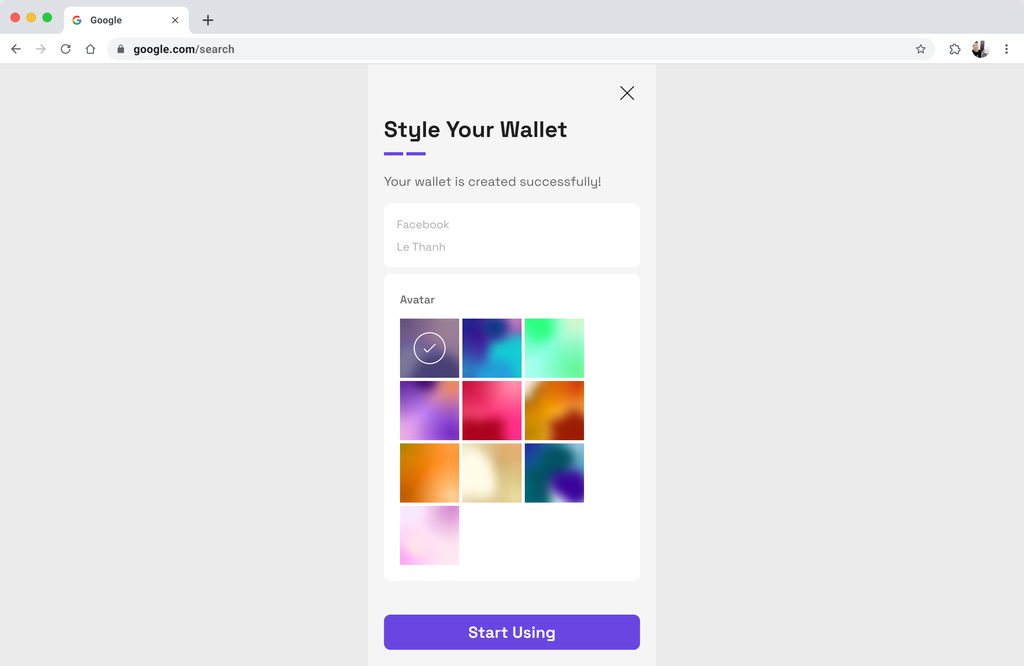
* After successfully logging into your Social account, you can customize your wallet avatar (you **cannot** customize your wallet name)
* Click **Start Using** button to use newly created wallet

<figure><img src="https://904341613-files.gitbook.io/~/files/v0/b/gitbook-x-prod.appspot.com/o/spaces%2F-MH4bZ3PuLVs6zPxsi0v%2Fuploads%2Fgit-blob-79154cbd4c9f7cbf7b8bb403366ac7b128123fef%2Fext-social-6.png?alt=media" alt=""><figcaption></figcaption></figure>