> For the complete documentation index, see [llms.txt](https://docs.saros.xyz/llms.txt). Markdown versions of documentation pages are available by appending `.md` to page URLs; this page is available as [Markdown](https://docs.saros.xyz/saros-mobile-app/extension/how-to-set-up-saros-extension-wallet.md).
# How to set up Saros Extension Wallet
## How to Setup Password?
Protecting your account's security and privacy is our top priority. Therefore, it is important to set up a password when you install the Saros Wallet Extension for the first time. Your Password will be required to access the extension and protect your assets.
To set up Password for Saros Wallet Extension, please follow these steps:
**Step 1:** Install Saros Wallet Extension and launch it for the first time.
**Step 2:** At the **Get Started** screen, choose one of the following:
* **Create wallet:** Create a new wallet on the Saros Wallet Extension.
* **Restore wallet**: Restore an existing wallet using your recovery phrase.
* **Add view-only wallet:** Track the activity of other wallets without owning that wallet.
After that, you will be navigated to the set-up password screen.
**Step 3:** Enter your Password and confirm the Password;
**Step 4:** Tick the Checkbox to confirm that you have read, understood and agree to abide by Saros Wallet's Terms of Service and Privacy Policy, then click **Create Password.**
Once successful, the screen will display the interface of adding/ restoring wallet, based on option that you chose at Step 2
## How to Lock Wallet?
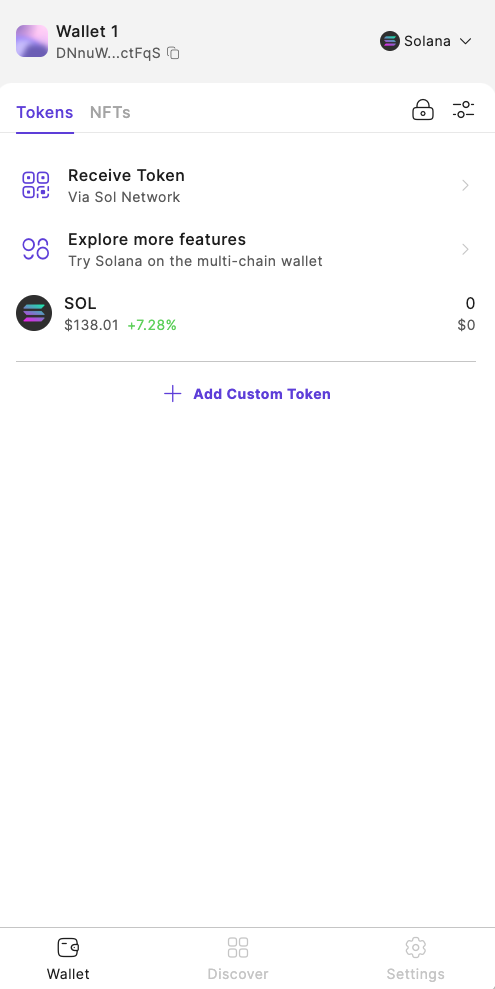
The Saros Wallet Extension will be locked if you are inactive on it in 15 minutes or you click on Lock icon.
After wallet is locked, you will be redirected to the Unlock Wallet screen.
## How to Unlock wallet?
When Saros Wallet Extension is locked, you need to unlock the wallet to access it.
**Step 1:** Open Saros Wallet Extension
**Step 2:** Input Password that you have set up for the Saros Wallet Extension to unlock it
{% hint style="warning" %}
**Note**
You only have 10 attempts to enter the password. If you fail all 10, your Saros Wallet Extension will be reset. This means all your wallets will be removed, and you will need to reimport them using the seed phrase.
{% endhint %}